BigQuery Connector Setup Guide
This guide explains how to connect BigQuery in a simple, step-by-step way.
What this connector does
The BigQuery connector lets Strand:
- read account-level data from a SQL query (Accounts step), and
- read event data from BigQuery tables/views (Events step).
Optional setup: You can use BigQuery for account sync, events, or both. These are configured separately and depend on your data stack. For example, many teams sync accounts from HubSpot/Stripe and use BigQuery only for event data.
Before you start
Have these ready:
- A Google Cloud service account JSON key with access to the project and datasets you want to use.
- The BigQuery project ID.
- At least one dataset and table you want Strand to read.
Google Cloud access checklist:
- The service account should be allowed to run BigQuery jobs (for example a role that includes
jobs.create, such as BigQuery User). - The same service account also needs read access to the dataset(s) you want to connect (for example BigQuery Data Viewer).
- You can create/manage service accounts in Google Cloud Console:
https://console.cloud.google.com/iam-admin/serviceaccounts
- To connect in Strand, generate a private key JSON for that service account from its Keys tab.
- Google only gives you the downloaded key file at creation time. If it is lost, create a new key and use the new JSON.
Note: The Fetch Tables feature works best when the service account has dataset-level visibility (not just access to individual tables), so Strand can enumerate the dataset and its table metadata automatically. A dataset-level read role such as BigQuery Data Viewer is typically sufficient. This is optional, but strongly recommended for a smoother setup experience.
Step 1: Connect (credentials, project, datasets)
Open: Settings -> Connectors -> BigQuery
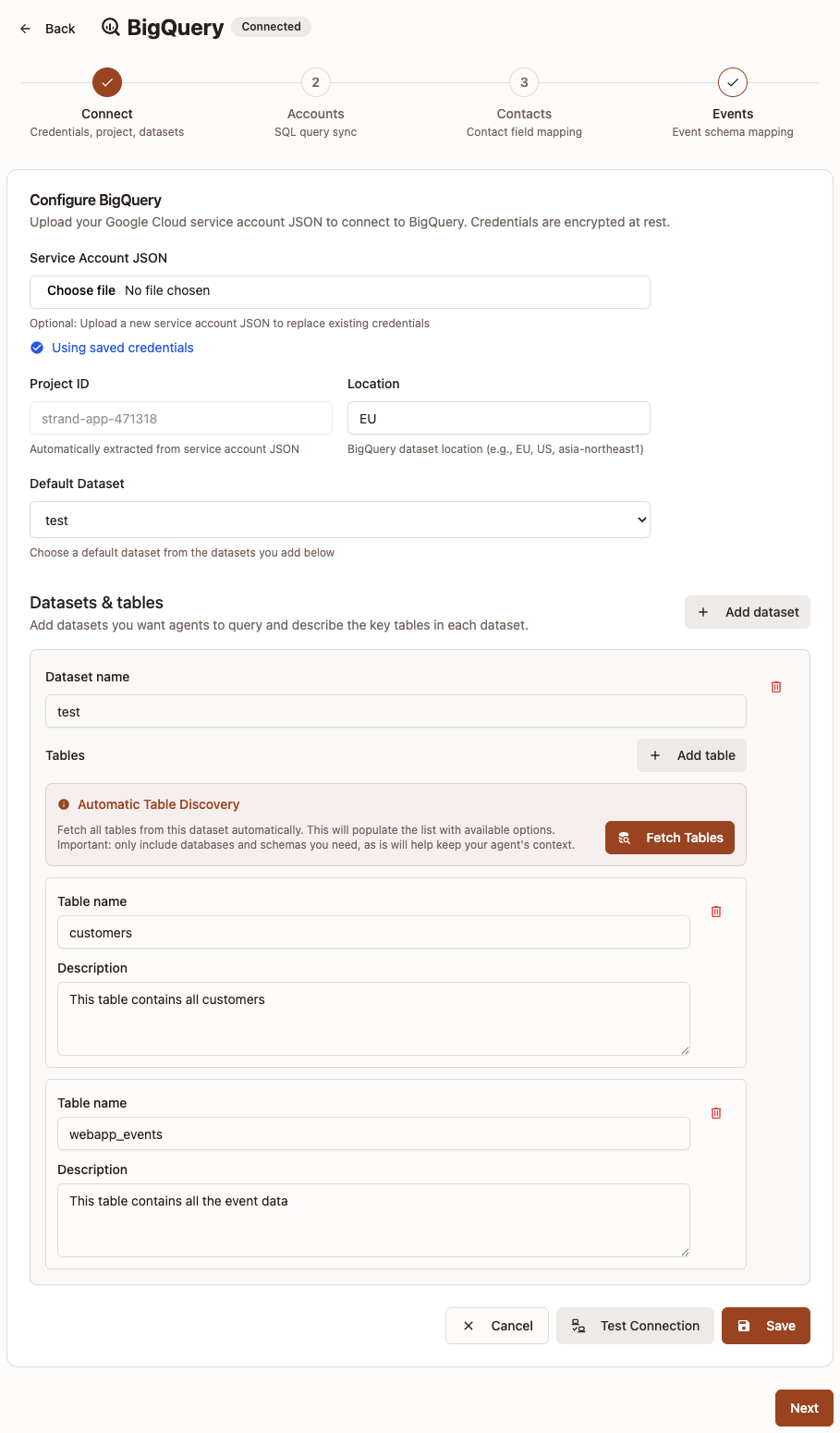
- Upload your Service Account JSON.
- Confirm the Project ID (auto-filled from the JSON).
- Set the Location (for example
EUorUS). - Add one or more Datasets.
- For each dataset, add tables manually or click Fetch Tables.
- Add a short description for each table you keep.
- Pick a Default Dataset.
- Click Test Connection, then Save.
Important rules:
- You must have at least one dataset.
- Each dataset must include at least one table with both a table name and description.
- If BigQuery is already connected, uploading a new JSON is optional (you can keep saved credentials).
Step 2: Accounts
This step configures how Strand reads account data from BigQuery. This step is required if you want to sync accounts from BigQuery.
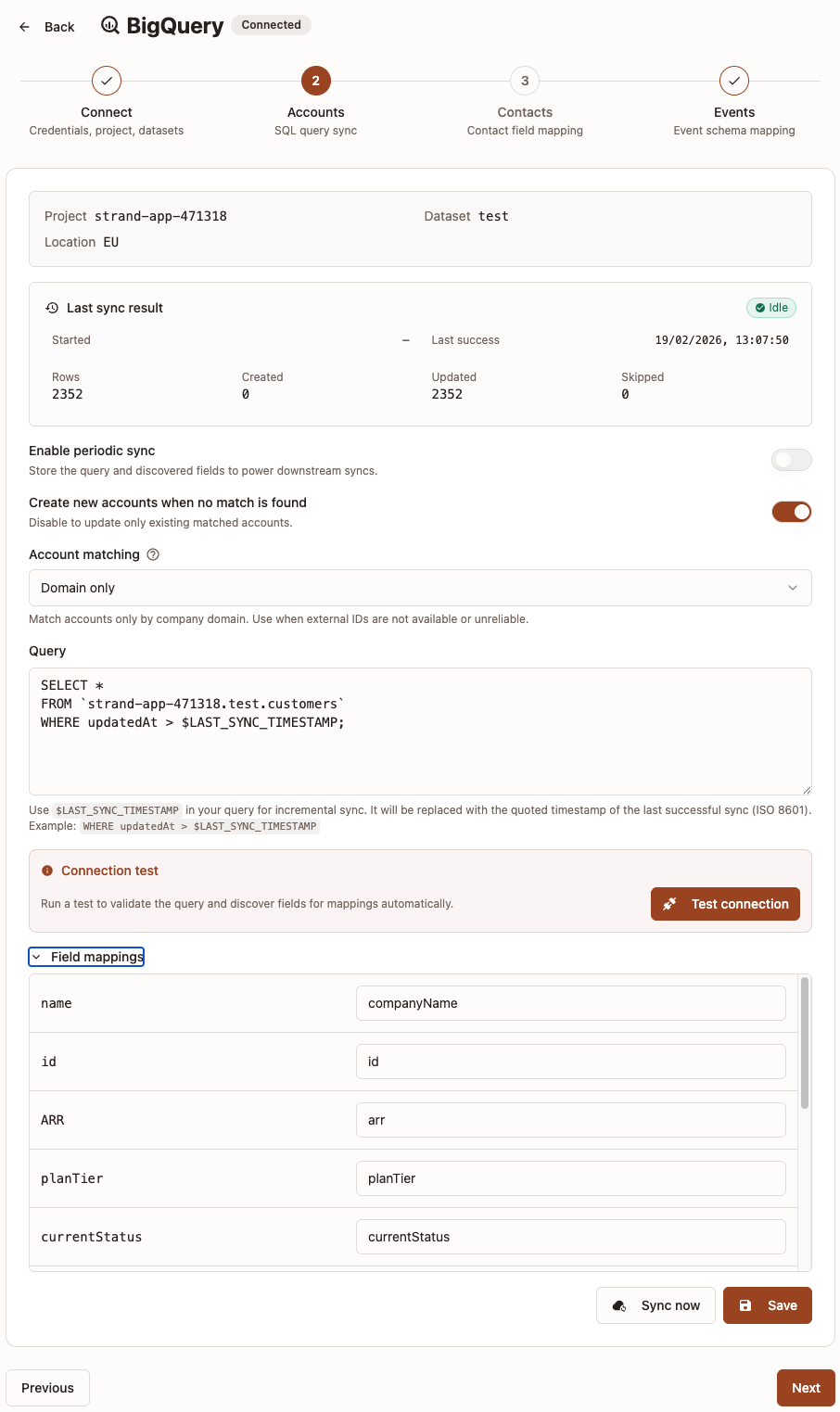
- (Optional but recommended) Turn on Enable periodic sync.
- Choose whether to Create new accounts when no match is found:
- On: Sync can create and update accounts.
- Off: Sync only updates existing matched accounts.
- Choose Account matching:
Domain onlyExternal ID onlyDomain + External ID
- Enter your SQL in Query.
- Click Test connection to validate and discover query fields.
- Open Field mappings and map returned columns.
- Click Save.
- Use the sync status panel to review last run results (rows, created, updated, skipped, and recent errors).
Field mapping requirements:
- Field mappings tell Strand which query columns represent core account fields.
- In Strand field mappings, use
camelCasetarget fields for consistency. - Example Strand target fields:
companyName,companyDomain,externalCustomerId. - Optional owner mapping: map a source column to
accountOwnerEmailto assign account owner by member email. - If no matching organization member in Strand is found for that email, sync continues and owner is left unchanged.
Company Nameis always required.- If matching is
Domain only, a column with exactlycompanyDomainis required. - If matching is
External ID only, a column with exactlyexternalCustomerIdis required. Note: Strand expects the external ID to be a string. - If matching is
Domain + External ID, map at least one of domain or external ID.
Incremental sync (optional)
By default, your query runs in full on every sync. To only fetch records that changed since the last successful sync, use the $LAST_SYNC_TIMESTAMP variable in your SQL.
At runtime, Strand replaces $LAST_SYNC_TIMESTAMP with a quoted ISO 8601 timestamp of the last successful sync start time. If no previous successful sync exists, it defaults to '1970-01-01T00:00:00.000Z'.
Example:
SELECT id, name, domain, updated_at
FROM `project.dataset.customers`
WHERE updated_at > $LAST_SYNC_TIMESTAMP
Important notes:
- This is opt-in. Queries without
$LAST_SYNC_TIMESTAMPcontinue to do full sync. - The variable is automatically wrapped in single quotes, so do not add your own quotes around it.
- If a sync fails, the timestamp is not advanced. The next run retries the same window.
- If you change key sync settings (query, filters, matching, mappings), the incremental baseline may reset and the next run can behave like a fresh sync.
- Make sure your source table has a reliable
updated_ator similar column for this to work correctly.
Step 3: Contacts
This step configures how Strand syncs contact data from BigQuery and links each contact to an existing account. This step is required if you want to sync contacts from BigQuery.
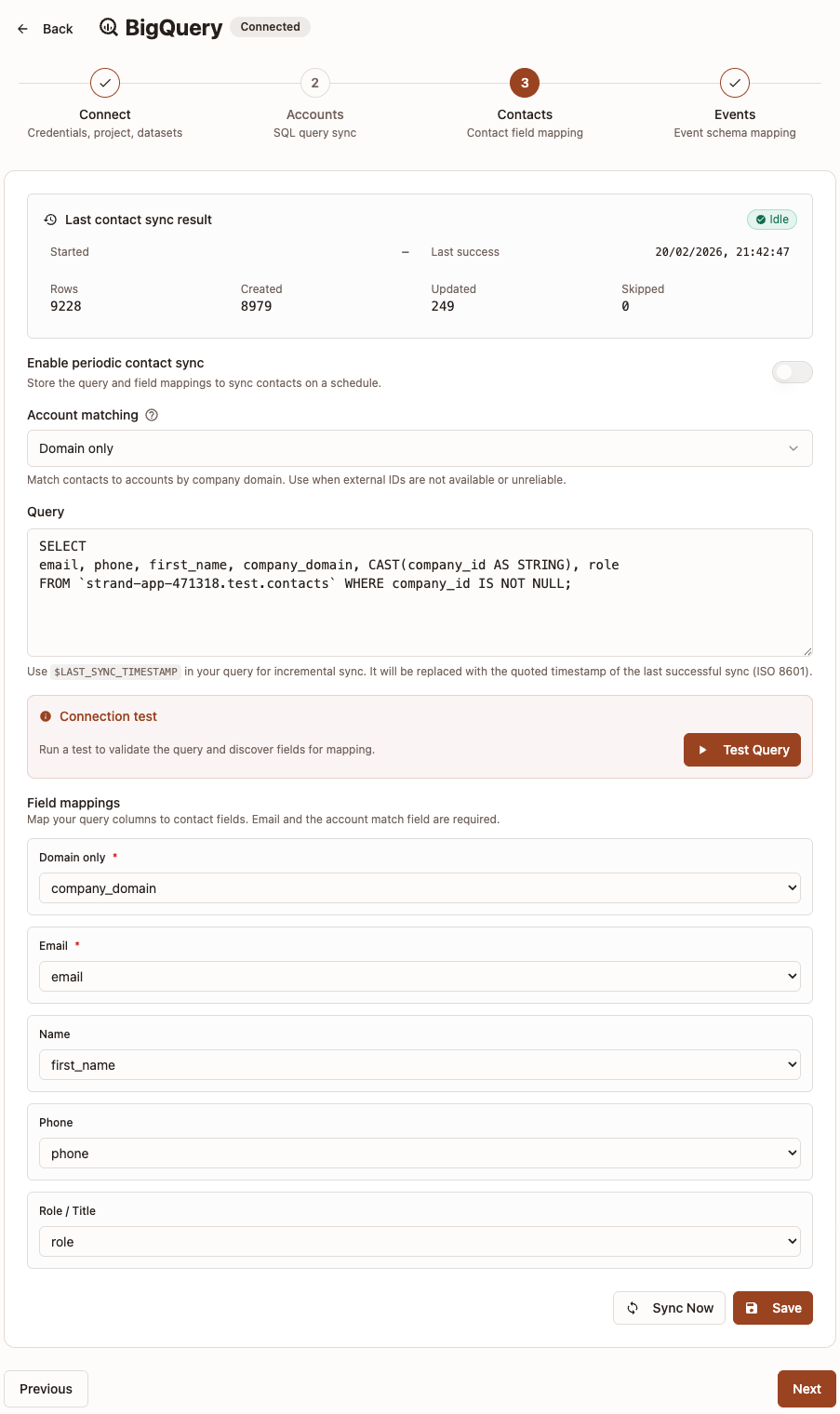
- (Optional but recommended) Turn on Enable periodic sync.
- Choose Account matching:
Domain only— match contacts to accounts by company domain.External ID only— match contacts to accounts by external customer ID.
- Enter your SQL in Query.
- Click Test connection to validate and discover query fields.
- Open Field mappings and map returned columns.
- Click Save.
- Use the sync status panel to review last run results (rows, created, updated, skipped, and recent errors).
Field mapping requirements:
Emailis always required.- A column for the chosen account matching field is also required:
- If matching is
Domain only, map a column tocompanyDomain. - If matching is
External ID only, map a column toexternalCustomerId.
- If matching is
- Optional fields:
Name,Phone,Role / Title. - Contacts are unique per account by email. If a contact with the same email already exists for an account, it will be updated.
- If no matching account is found for a row, that contact is skipped (not treated as an error).
Incremental sync (optional)
As with the Accounts step, you can use $LAST_SYNC_TIMESTAMP in your SQL to only fetch contacts that changed since the last successful sync.
Example:
SELECT email, name, phone, role, company_domain
FROM `project.dataset.contacts`
WHERE updated_at > $LAST_SYNC_TIMESTAMP
The same rules apply as described in the Accounts incremental sync section above.
Best practice: use the same account matching style as your Accounts sync so contacts are linked to the correct accounts.
Step 4: Events
This step configures how Strand reads event data. There are two different setup paths.
Option A: Single table
Use this when all events are stored in one table/view.
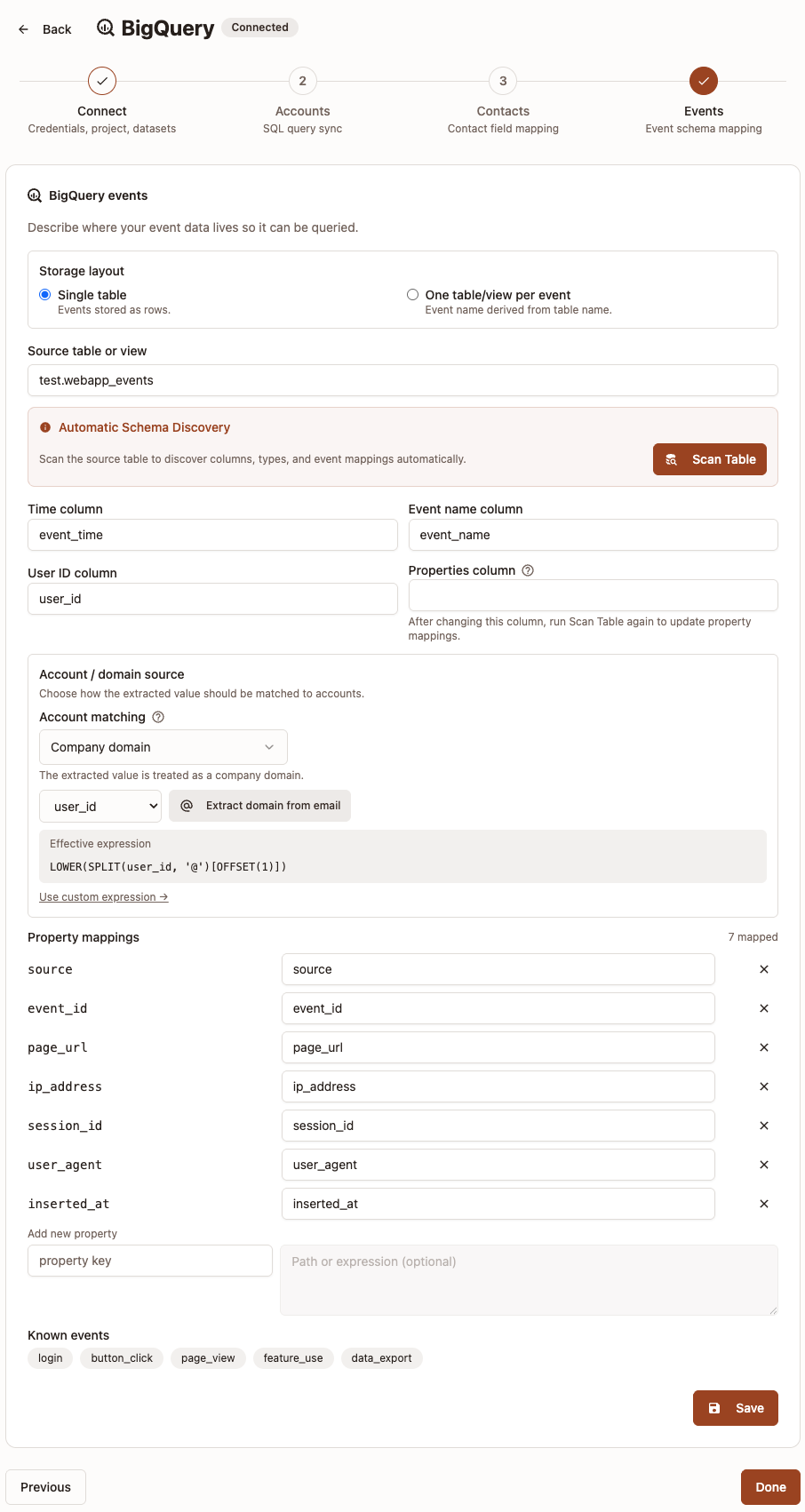
- Select Single table.
- Set Source table or view (for example
dataset.tableorproject.dataset.table). - Click Scan Table to detect columns.
- Fill or confirm:
Time columnEvent name columnUser ID columnProperties column(if your event properties are stored in one JSON/object column)
- Configure Account / domain source and Account matching (see the explanation section below before choosing).
- Add Property mappings for event attributes you want to expose.
- Click Save.
Single-table notes:
Event name columnis used directly from your selected source table.Properties columnis available in this mode and should point to the column that holds event attributes if your event properties are stored in one JSON/object column.- In Property mappings, you can use direct column names or expressions.
- Expressions are useful for nested values or type conversion, for example
JSON_VALUE(properties, '$.plan')orCAST(amount AS FLOAT64). - Note: for nested fields, make sure to use correct type casting in expressions. For example, if you have a nested field
properties.countthat you want to use as a number, you should useCAST(JSON_VALUE(properties, '$.count') AS INT64). - Run scan after changing source table so available fields and property mappings are updated.
Option B: One table/view per event
Use this when each event has its own table or view.
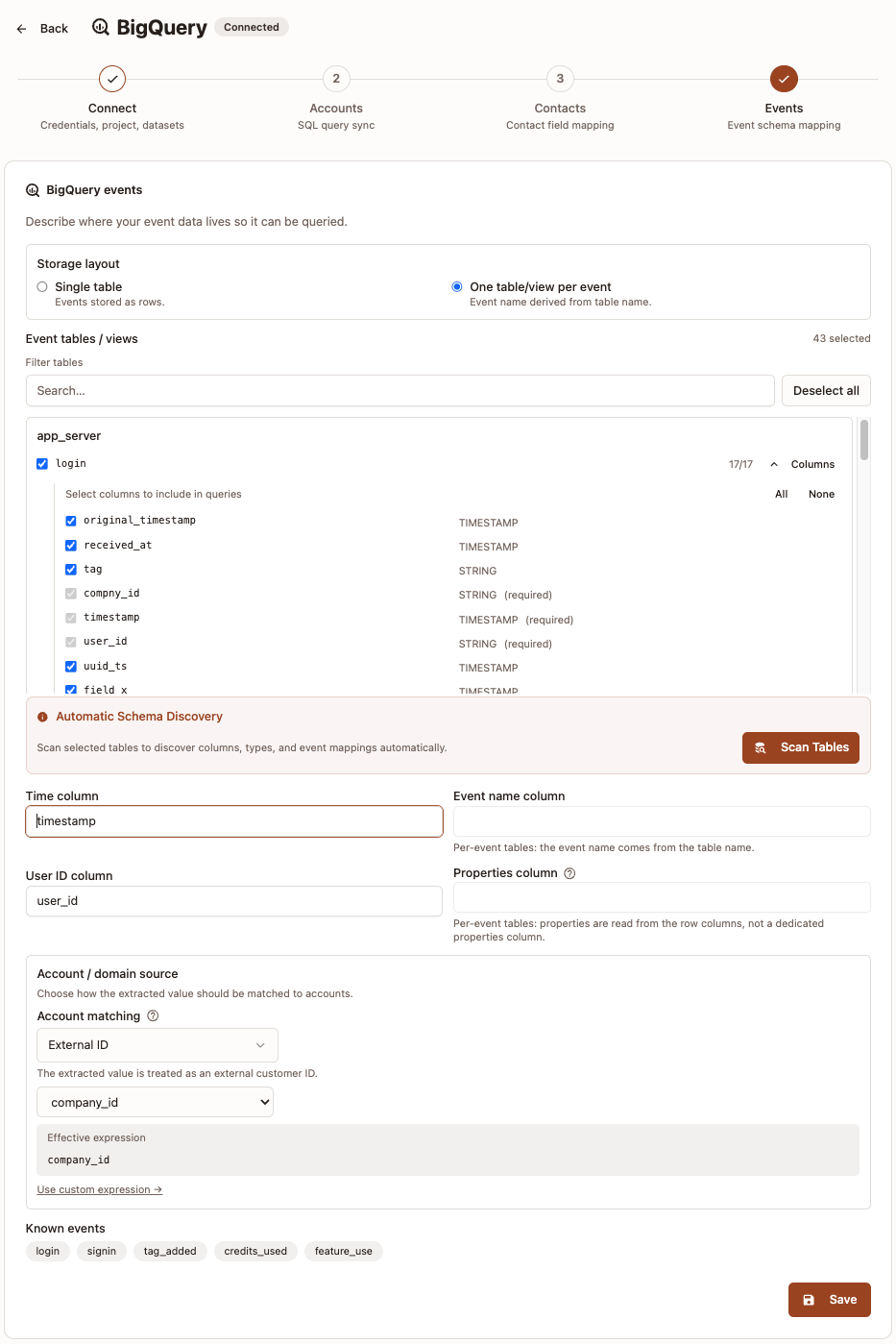
- Select One table/view per event.
- Choose the event tables/views to include.
- Click Scan Tables to detect schema and event mappings.
- Fill or confirm:
Time columnUser ID column
- Configure Account / domain source and Account matching (see the explanation section below before choosing).
- Click Save.
Per-event notes:
- Event name comes from table/view name.
- Properties are read from row columns, not a dedicated properties column.
- After scanning, you can choose which columns to include in event queries.
- Scanning selected tables is required before save.
Event limits and lookback:
- You no longer configure
Max rows per queryorDefault lookback (days)in the UI. - Strand uses built-in defaults for these values automatically.
How to choose Account matching in Events
Account matching links each event row to an account.
- Use
Domainif you have a reliable domain value. - Use
External IDif you have a stable account/customer ID (for examplecust_12345).
If you only have email, extract the domain in Expression or column:
LOWER(SPLIT(email, '@')[SAFE_OFFSET(1)])This converts person@acme.com to acme.com.
Best practice: use the same matching style as your Accounts sync.
Troubleshooting
- Test Connection fails: verify service account permissions and project/dataset access.
- No tables found: confirm dataset name, location, and service account dataset permissions.
- Cannot save Accounts step: check required field mappings based on selected account matching mode.
- Cannot save Events step: run Scan Tables first and confirm required columns are mapped.