Recurring Tasks
What are Recurring Tasks?
Recurring tasks are automated workflows that run on a schedule you define. They let you set up an AI agent to regularly check on your accounts and report back with findings — without you having to do anything manually each time.
A typical recurring task might:
- Review all your accounts weekly and create a Signal for accounts showing signs of churn.
- Check product usage weekly and create a Signal for accounts with declining activity.
- Monitor renewal timelines and create a summary for accounts with upcoming renewals and post it to a Slack channel.
Once a task is set up, it runs automatically in the background. When the AI finds something worth your attention, it creates a Signal that appears in your inbox.
Creating a task from the UI
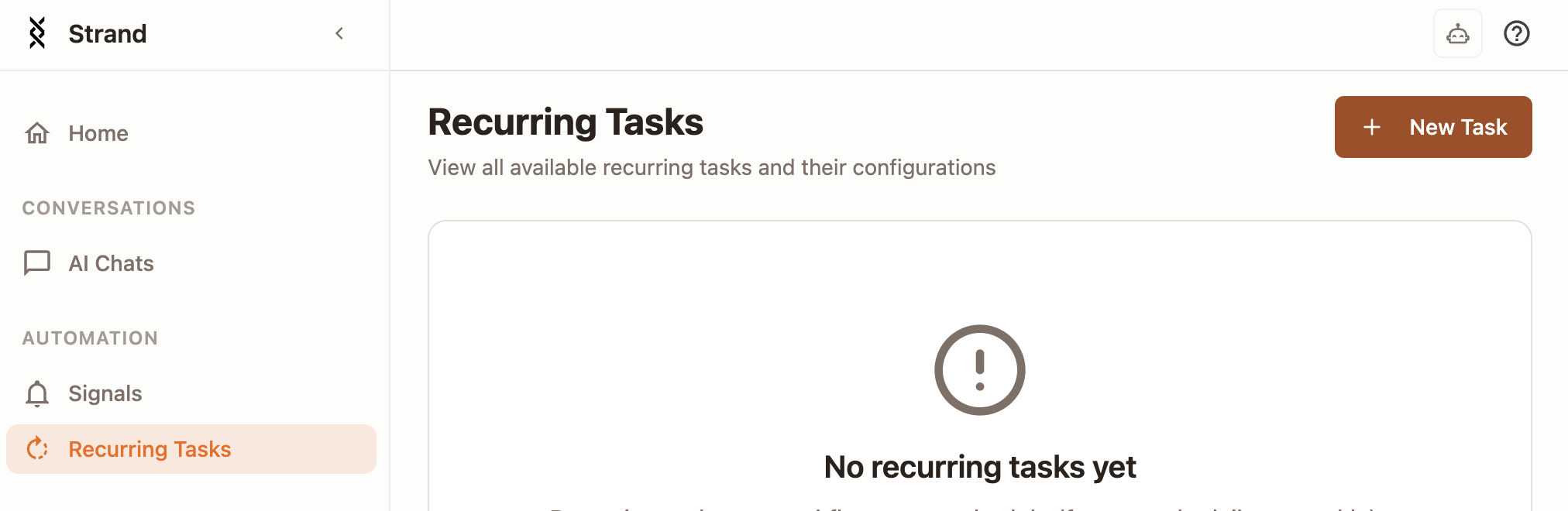
- Open Recurring Tasks from the main sidebar.
- Click New Task.
- Fill in the task details:
- Name — give your task a descriptive name (for example “Weekly churn risk check”).
- Description — a short note about what this task does.
- Schedule — pick which days of the week the task should run and at what time.
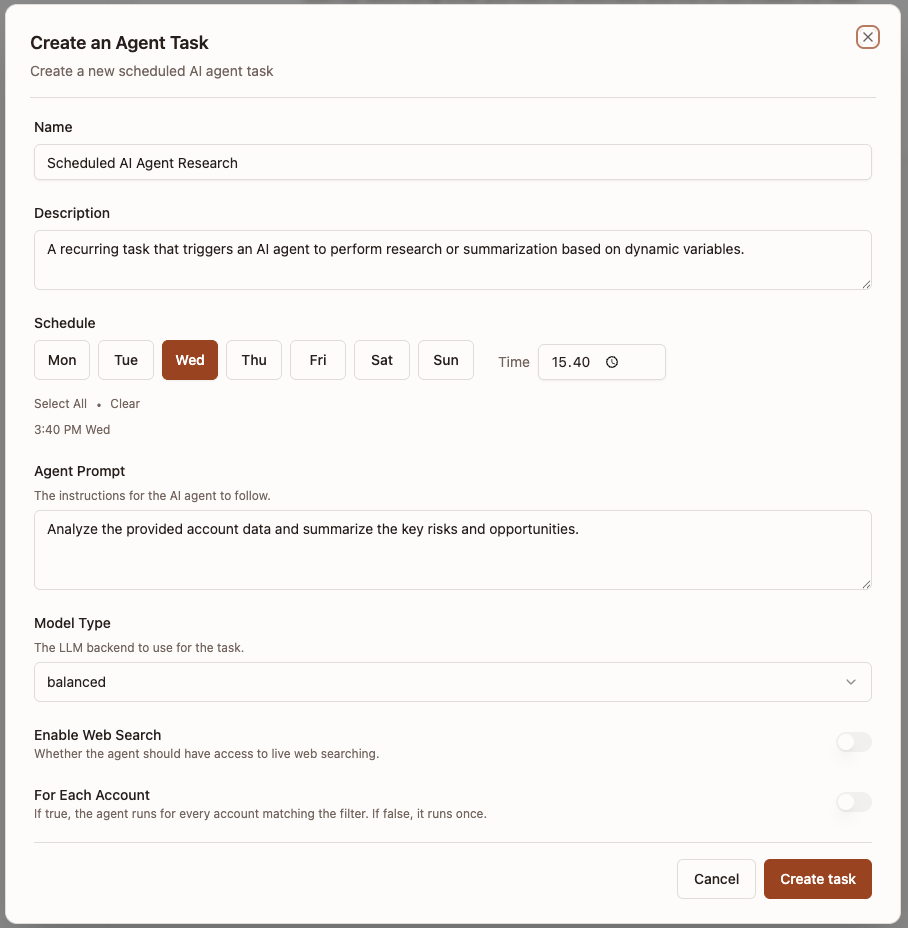
Configure the AI agent:
- Agent prompt — describe what you want the AI to look for, in plain language. For example: “Review each account’s recent activity and flag any with declining usage or engagement.”
- Model — choose between Fast, Balanced, or Smart depending on how thorough you need the analysis to be.
- Web search — turn this on if the agent should be able to look up external information.
- Run for each account — controls whether the agent runs once per account or once across all accounts.
- On: The agent runs separately for each account, with that account’s details included automatically. Use this when the task is about analyzing individual accounts. Since each run already has the account context, write your prompt accordingly — for example “Investigate this account for…” rather than “Investigate all accounts for…“. You can also add a filter to target a specific segment (for example
region=US). - Off: The agent runs once and can search across your entire account base on its own. Use this when you want the agent to find and compare accounts — for example “Identify the accounts with the highest churn risk based on the last 30 days of activity and create a signal for each one.”
- On: The agent runs separately for each account, with that account’s details included automatically. Use this when the task is about analyzing individual accounts. Since each run already has the account context, write your prompt accordingly — for example “Investigate this account for…” rather than “Investigate all accounts for…“. You can also add a filter to target a specific segment (for example
Click Create task.
Your task is now scheduled and will run automatically at the times you selected.
Best practices
- Use weekly schedules over daily ones. These tasks are AI-powered, so results can vary between runs even with the same prompt and data. Weekly runs also keep your AI usage in check.
- Be specific about what to look for and what to produce. Instead of “Find accounts with declining usage”, try “Find accounts with declining usage over the last 30 days and create a signal for each one.” Always specify the desired output — whether that is a Signal, a Slack message, or both.
Creating a task with AI
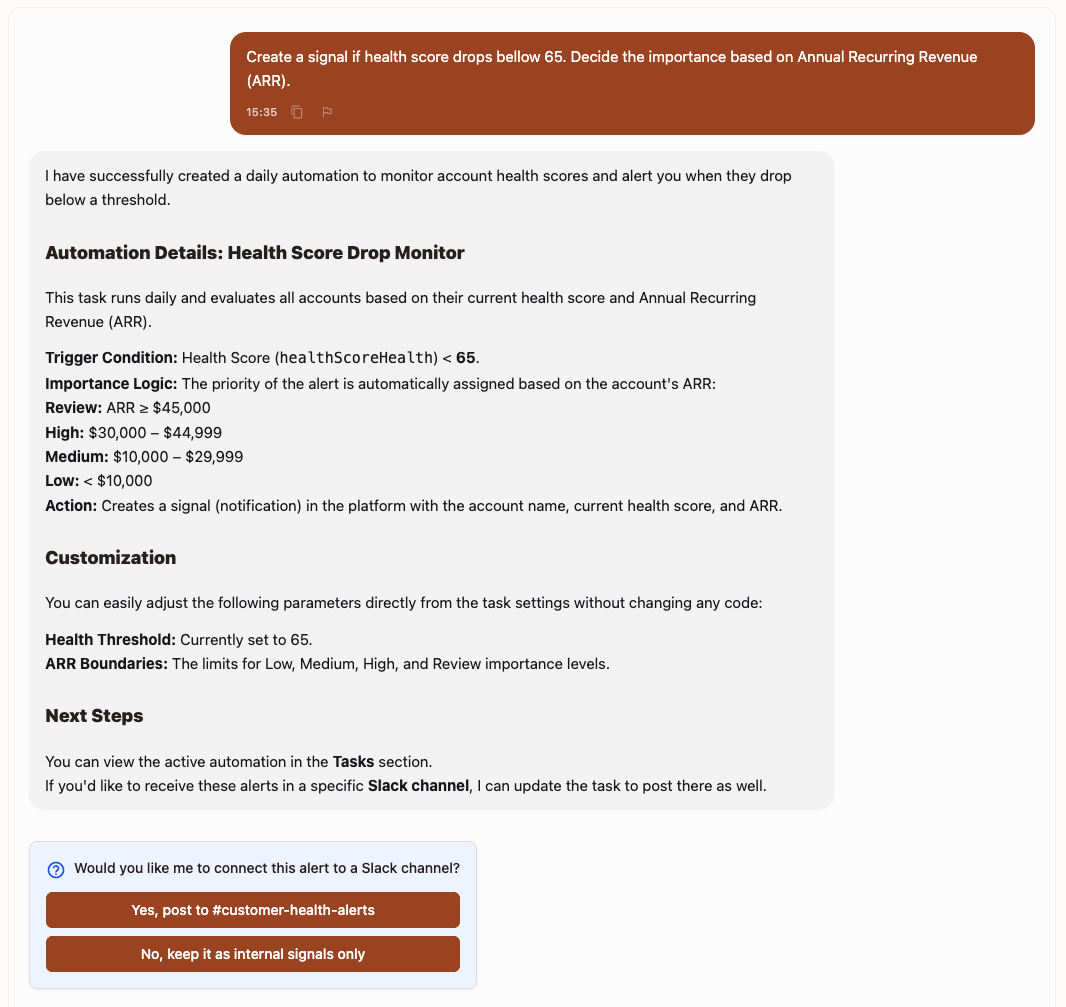
The Strand AI Agent is guided to help you create and configure recurring tasks following the best practices. Therefore, it may be easier to start with the AI agent than creating the task manually. Additionally, the AI agent can create tasks that are deterministic. For example, if you ask the AI agent to “Post daily usage every day at 9am to Slack channel #account-updates”, it will create a task that will produce the same result every day.
To create a task with AI navigate to /app/agents and simply describe what you want the agent to do in the chat window. The agent may ask clarifying questions to ensure it understands your request correctly. Once the agent has a clear understanding of your request, it will create the task for you.
Managing your tasks
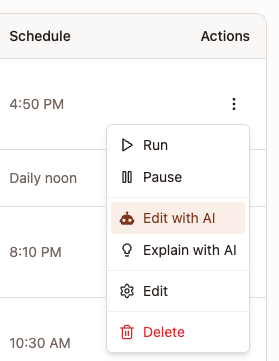
After creating a task, you can manage it from the Recurring Tasks page. Each task has a menu with these options:
- Run — trigger the task immediately without waiting for the next scheduled run.
- Pause / Resume — temporarily stop or restart the schedule.
- Edit — update the task name, description, or AI agent settings.
- Edit with AI — open the side chat to make changes with help from the AI.
- Delete — permanently remove the task.
How tasks can produce Signals
Here is what happens each time a recurring task runs:
- The task fires at its scheduled time.
- If “Run for each account” is enabled, it pulls the relevant accounts.
- The AI agent analyzes each account based on your prompt and if prompted creates a Signal linked to that account.
- The Signal appears in your Signals inbox, ready for you to review.
This is how Recurring Tasks and Signals work together — tasks are the engine, Signals are the output.