HubSpot Connector Setup Guide
This guide explains how to set up HubSpot in Strand in a simple, non-technical way.
What this connector does
The HubSpot connector lets Strand:
- sync HubSpot companies into Accounts,
- map HubSpot properties to Strand fields,
- optionally filter which companies are synced,
- run manual syncs on demand, and
- keep periodic sync running in the background.
Before you start
Make sure you have:
- Admin or Owner access in your organization (required for setup and sync actions).
- A HubSpot account you can authorize.
To connect HubSpot:
- Go to
Settings -> Connectors. - Open HubSpot.
- Click Connect HubSpot and complete OAuth.
Configure HubSpot Sync
Open: Settings -> Connectors -> HubSpot
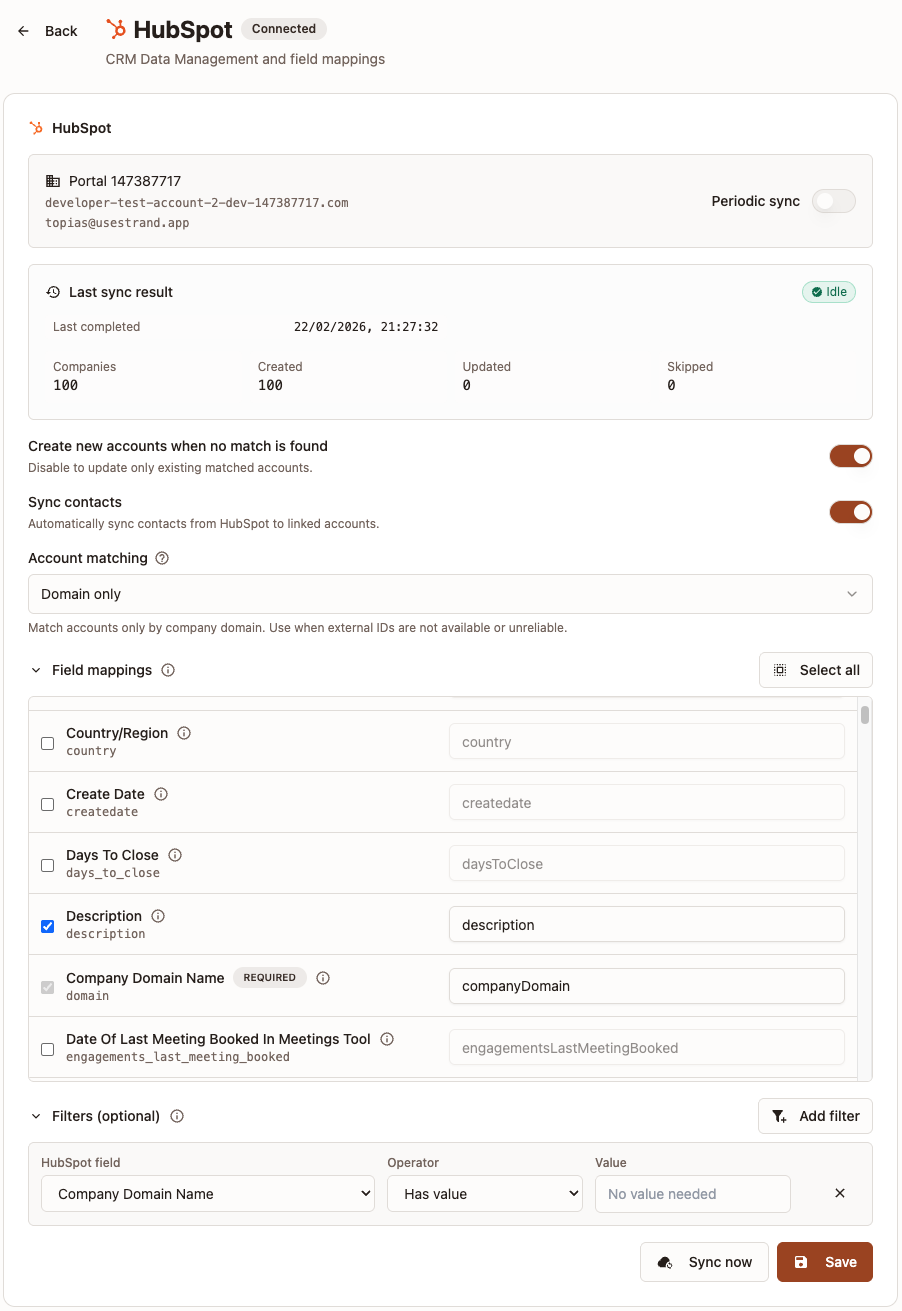
1) Turn periodic sync on or off
- Use the Periodic sync toggle to control scheduled syncing.
2) Choose account matching
Choose how incoming HubSpot data matches existing Strand accounts:
Domain: match by company domain.External ID: match by external customer ID.Domain + External ID: allow either.
3) Field mappings
Open Field mappings and map HubSpot properties to Strand fields.
Suggested camelCase Strand target fields:
companyNamecompanyDomainexternalCustomerIdOptional owner mapping: map a HubSpot property to
accountOwnerEmailto assign owner by organization member email.If the email does not match a member in Strand, sync continues and owner assignment is skipped.
Required mappings depend on account matching:
DomainrequirescompanyNameandcompanyDomain.External IDrequirescompanyNameandexternalCustomerId.Domain + External IDrequirescompanyName, plus at least one ofcompanyDomainorexternalCustomerId.
4) Filters (optional)
Open Filters (optional) to limit synced companies.
- Add one or more filter rules.
- Choose HubSpot field, operator, and value.
- Save settings to apply filters to both manual and periodic sync.
5) Sync contacts (optional)
Turn on Sync contacts to automatically sync contacts from HubSpot to their linked accounts. Contacts are matched to accounts during each sync run. No additional configuration is needed.
6) Create-missing behavior
Choose whether to create accounts when HubSpot records do not match existing Strand accounts.
- On: create + update
- Off: update matched accounts only
7) Save and sync
- Click Save.
- Click Sync now to run a manual sync immediately.
After a run, check the sync status panel for:
- last completed time,
- processed/created/updated/skipped counts,
- recent errors (if any).
Incremental behavior
HubSpot sync uses incremental updates automatically when possible. Full sync is only used when key settings have changed.
Troubleshooting
- Cannot save settings: check required mappings based on selected account matching mode.
- No data synced: review filters; they may be too restrictive.
- Too many records are skipped: check
Create new accounts when no match is found. - Sync button not working: confirm HubSpot is connected and you are Admin/Owner.
- Fields look incomplete: reopen Field mappings and ensure required HubSpot properties are selected and mapped.